Blog
Setting up a chain of LED posters, step by step
Joining LED posters into one screen is mostly planning. This article walks through the steps in the order they happen, from the first sketch to the check of the picture. It follows our cascade guide and does not replace the documents for your order.
- Plan
- Order
- Connect
- Check
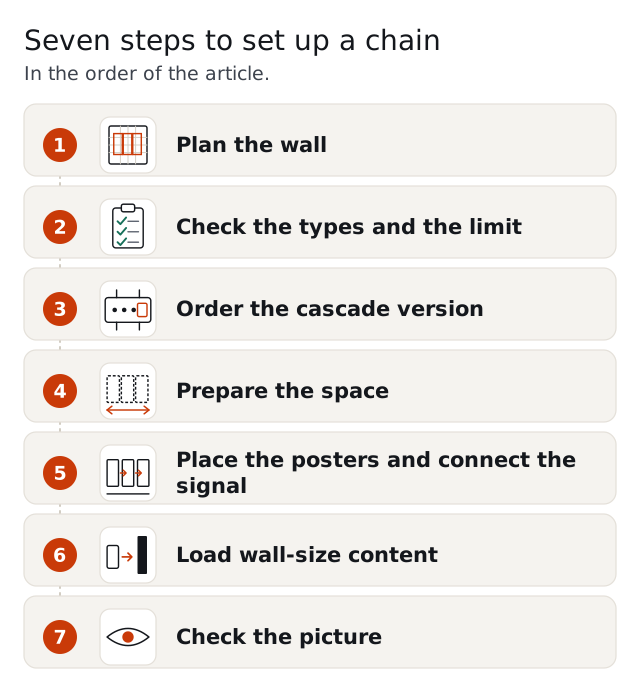
1. Plan the wall
Decide the picture, the closest viewer and the width. Choose a pitch for the closest viewer; the pixel pitch guide gives the table. Pitches never mix in one chain, so the whole wall uses one pitch.
2. Check the types and the limit
Die-cast, tri-fold and outdoor posters can be chained; double-sided and acrylic posters cannot. The number of posters depends on the total pixels the controller can drive. For the 640 die-cast poster, a NovaStar controller joins up to 8 posters at P2.5, and a Huidu controller joins up to 6 at P1.25.
3. Order the cascade version
In a chain the cascade controller replaces the control card in each poster, so it is chosen when you order. Tell us the system (NovaStar with Mean Well PSU by default; Huidu or Colorlight as a lower-cost option), the pitch and the number of posters. We calculate the layout for you.
4. Prepare the space
Posters stand side by side on the floor. Check the width of the wall, and leave 30 to 50 cm behind posters with rear service for the rear cover. The size guide lists the widths and the clearances.
5. Place the posters and connect the signal
Place the posters edge to edge in the planned order. The video signal runs from the HDMI output of one poster to the input of the next. Switch the posters off while you connect, and keep the cables tidy.
6. Load wall-size content
The whole wall is one canvas: three 640 posters at P2.5 make 768 × 768 pixels. Make the artwork at the total pixel size, then load it over Wi-Fi from a phone or laptop, over LAN or from USB. Use the content formats guide for the sizes.
7. Check the picture
Stand at the viewing distance and look across all posters. Check that the picture runs across the edges in the right order and that important text is not close to a joint. Layout settings are done in the control software of your system; tell us the system and we explain what the setup needs.
Questions and answers
Do all posters in the chain need the same type?
No. They need the same pitch and a type that can be chained. A 640 and a 960 poster share the height of 1920 mm.
Which cable joins two posters?
The signal runs from the HDMI output of one poster to the HDMI input of the next.
Who sets up the chain?
The steps above are written for your own team or integrator, using the control software of your system.
Can I add a poster to a finished chain?
Check the controller limit first. Adding a poster adds pixels, and the controller and its cards must be able to drive them.
How wide can the picture be?
Up to 5120 × 1920 mm with 8 640 posters at P2.5 on a NovaStar controller.
Where do I find the pixel size of my wall?
Add the widths in pixels of each poster. The resolution guide lists one, two and three posters for each pitch.
Do I need a controller in addition to the posters?
The cascade controller replaces the control card in each poster, and the player holds the content.
Where do I set the layout?
In the control software of your system (NovaStar by default; Huidu or Colorlight as a lower-cost option).
Request a quote
Request a quote and tell us the type, the pixel pitch, the quantity, the destination country and your control system (NovaStar with Mean Well PSU by default; Huidu or Colorlight as a lower-cost option). Price, MOQ and lead time are quoted per order. Samples are available.